
Movie Theater Catch AI Video
Create a screen-to-seat reaction clip for an edit.
Movie Theater Catch AI Video examples
Compare subjects within the theater reaction.
A ready-made sequence
Movie Theater Catch AI Video is a prepared portrait-format reaction shot. A spectator reaches for a large prop that appears to emerge from a cinema screen and raises it. One person photo guides the foreground viewer, while the screen, seats and camera come from the reference. Preview the sequence to decide whether its reveal fits the story or montage you are planning.
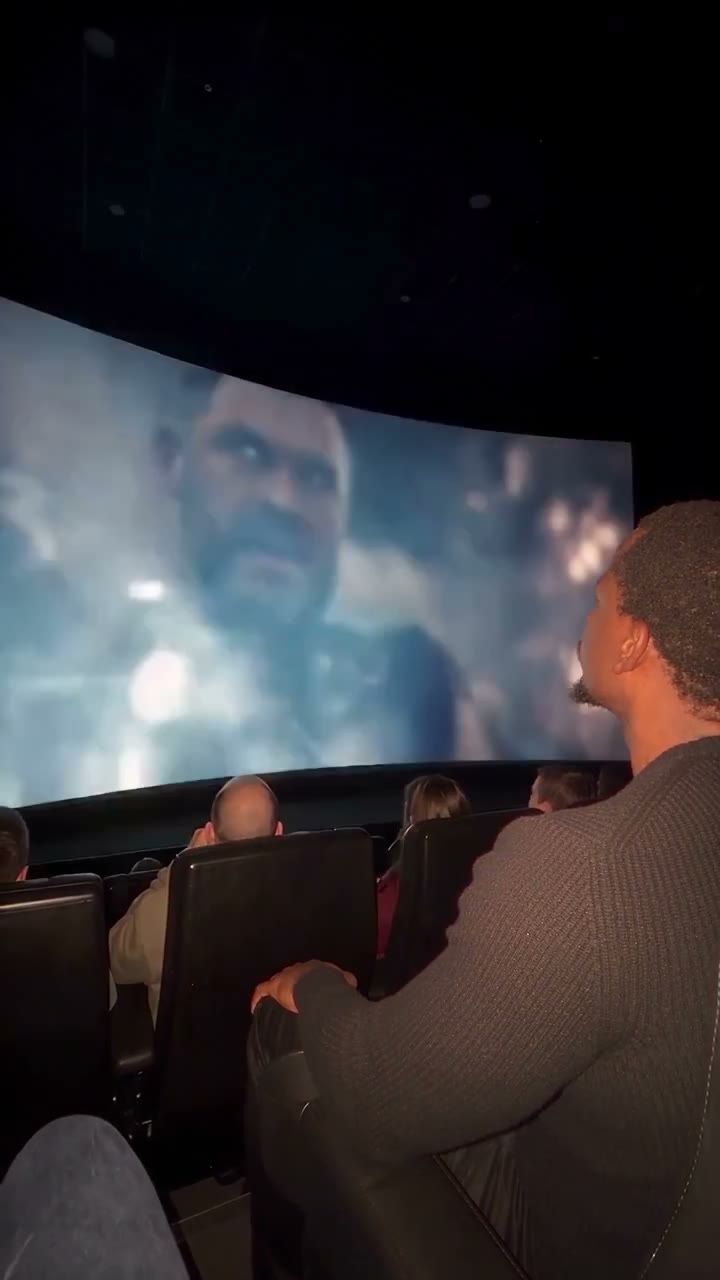
Create with Movie Theater Catch AI Video
Prepare your input before building the next clip.
STEP 1
Provide
Provide one person photo for the foreground viewer to build the clip.
STEP 2
Plan
Plan around the approximately 12-second scene and the shown estimate.
STEP 3
Check
Check the person’s hands and face during the catch before editing the result.
Plan around the footage
Use the prepared action as a clip from this theater reaction.
Prepare your cast
Choose a clear individual image for Movie Theater Catch AI Video. The viewer's face, hair and upper body provide useful cues; the photo does not need to show a cinema seat. The source camera looks toward the screen and shows side or back angles too, so details absent from the portrait must be interpreted. Avoid a distant group picture when a clearer subject is available.
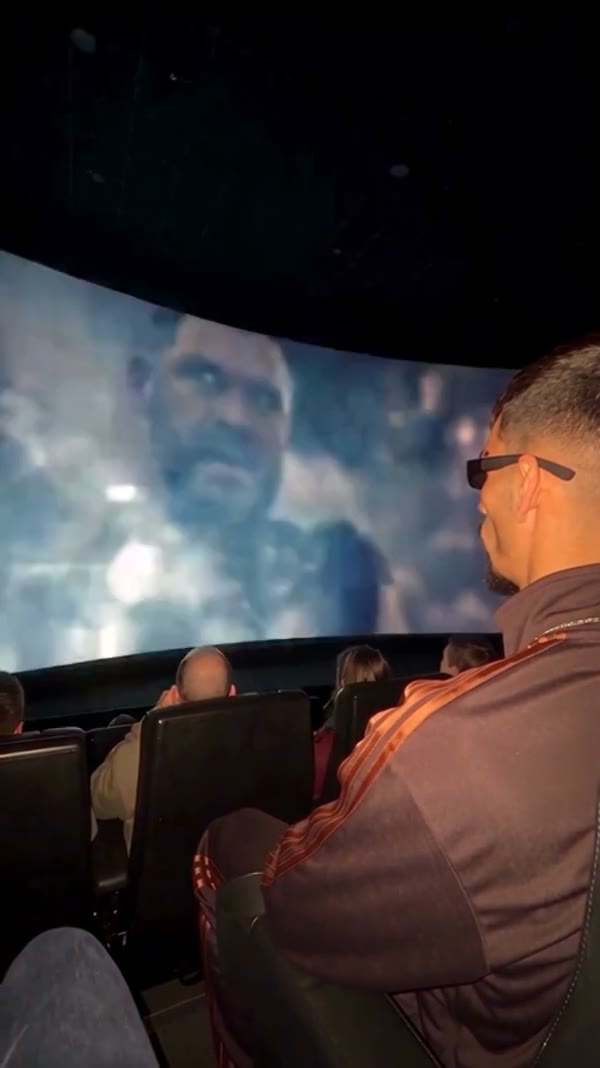
Plan around the footage
Movie Theater Catch AI Video already includes the screen content, prop and the timing of the reach. There is no separate field here for an alternative movie or object. The screen-to-seat relationship is important to the visual gag, so preserve both in any later crop. Review the generated hand and prop where they appear to meet, since contact can vary between frames.
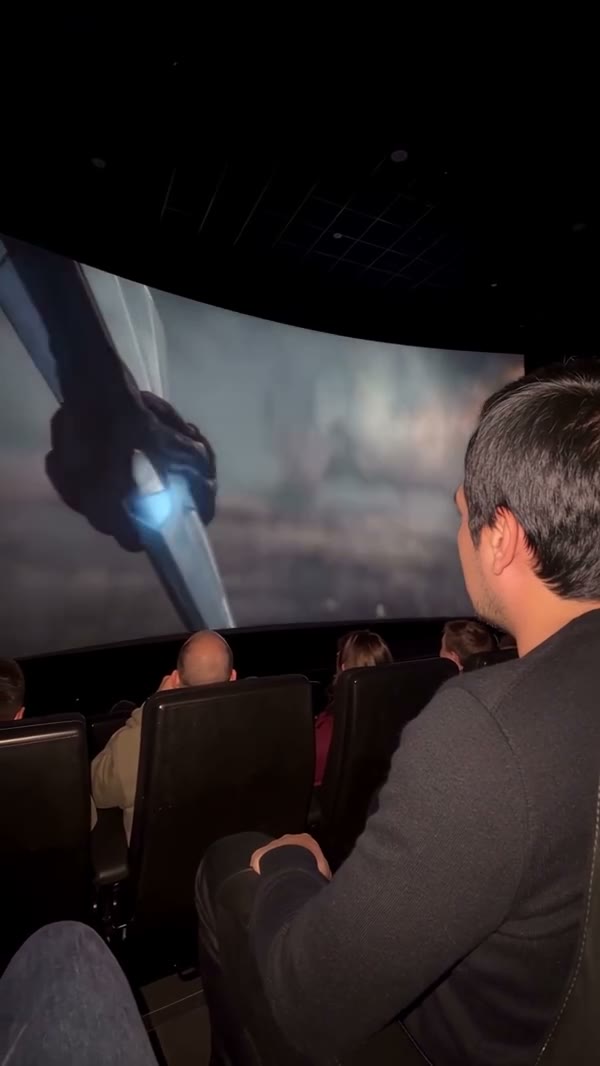
Check your output
The Movie Theater Catch AI Video reference lasts approximately 12 seconds. Economy, Standard and Original use the full available action with different settings, so compare the displayed estimate before submitting. Once the task completes, inspect the person's profile and the raised prop, and listen to the delivered file for the workflow's attempted reference-audio restoration.
About the Movie Theater Catch AI Video scene
Background to the theater reaction.
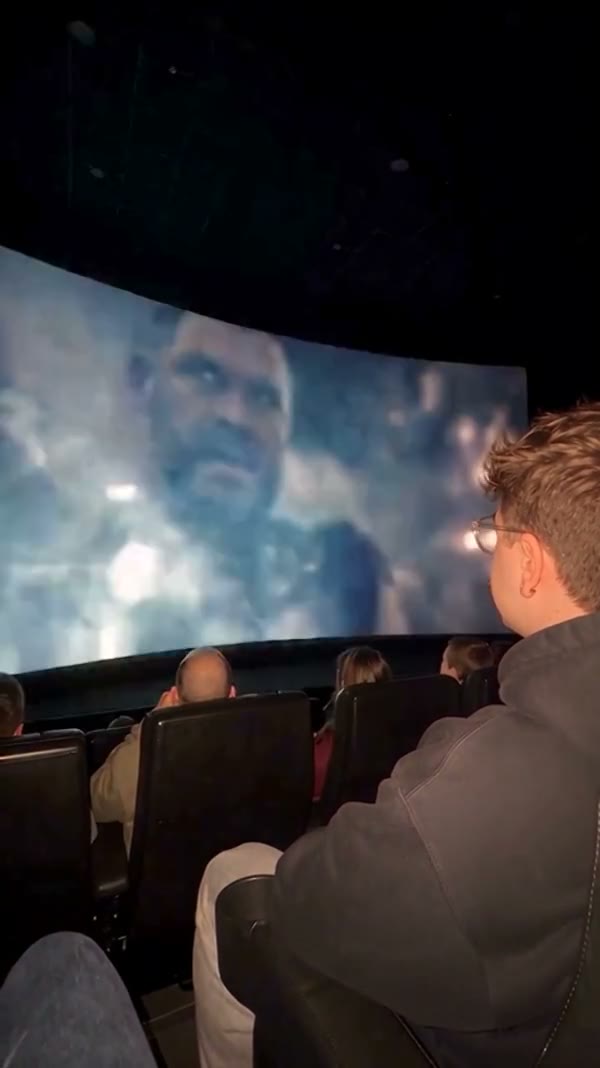
The reveal across the frame
The scene builds a screen-to-seat reveal in a cinema. The source creator of this version remains unknown. View the supplied cinema video
Movie Theater Catch AI Video questions
Review the choices and limits of Movie Theater Catch AI Video before creating.
Can Movie Theater Catch AI Video be used as a reaction shot?
Movie Theater Catch AI Video supplies one prepared screen-to-seat reaction that you can review as a shot in a larger edit. Download the completed result and arrange it separately with any other footage. The fixed page does not automatically match its timing to a script or create a multi-shot sequence.
What image does Movie Theater Catch AI Video require?
Movie Theater Catch AI Video requires one individual person photo for the foreground viewer. Choose a recognizable face and hair, preferably with the upper body visible. The photo does not need a theater background or seated pose. A side or back view absent from the still must be inferred by the model.
Can Movie Theater Catch AI Video cast the screen character?
The one Movie Theater Catch AI Video upload guides the foreground spectator. Figures on the screen and people in other seats remain part of the prepared footage. This fixed workspace has no separate role for each audience member or the person in the movie. Preview the source before choosing it for your edit.
Can Movie Theater Catch AI Video use a different prop?
Movie Theater Catch AI Video follows the object and timing in its selected reference. It does not expose a separate prop upload, movie selector or motion path. If a different object is necessary to your story, a compatible workflow with another reference would be needed instead of this fixed entry.
Why is Movie Theater Catch AI Video about 12 seconds?
The Movie Theater Catch AI Video source is approximately 12 seconds and is shorter than the prepared short-clip limit. Economy, Standard and Original therefore use the full available sequence while applying different settings. The page shows an estimate for the selected option; it does not add a longer ending or offer a custom cut point.
Where should I cut Movie Theater Catch AI Video?
Watch Movie Theater Catch AI Video from the opening screen view to the raised prop before planning a later cut. The fixed workspace does not set a custom cut for your edit. In a separate editor, preserve enough lead-in for the apparent movement from the screen to the viewer to make sense.
How do I inspect Movie Theater Catch AI Video contact?
Pause Movie Theater Catch AI Video near the reach, apparent contact and final lift. Check whether the arm, hand and object remain understandable against the screen, and compare the viewer's profile with the input photo. Generated grip and object details may vary during fast motion or occlusion.
Can I crop Movie Theater Catch AI Video?
Movie Theater Catch AI Video uses a vertical reference with both screen and spectator in view. A tight crop made later can hide the source of the prop or the reaching hand. Check the complete crop in your editor and leave space for any caption or interface overlay that may cover the action.
Where can I check Movie Theater Catch AI Video sound?
Open My creations after Movie Theater Catch AI Video completes and play the delivered file. Reference-audio restoration is attempted, so listen before combining it with another soundtrack. Review the selected mode, the visual result and the current estimate before deciding whether a new task is needed.