
AI Outfit Check Video Scene
Turn one person photo into a street-style cut.
AI Outfit Check Video examples
Consider alternative appearances for a video edit.
A prepared look in motion
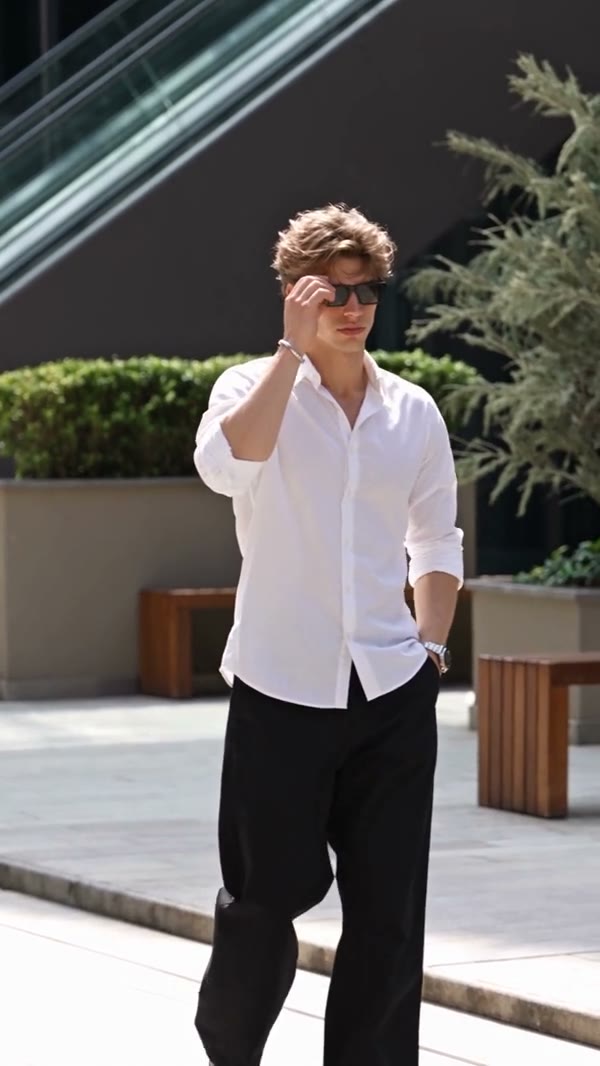
AI Outfit Check Video uses one person photo to guide the subject in a fixed outdoor walk. The reference provides a sunglasses gesture, several poses and a turn.
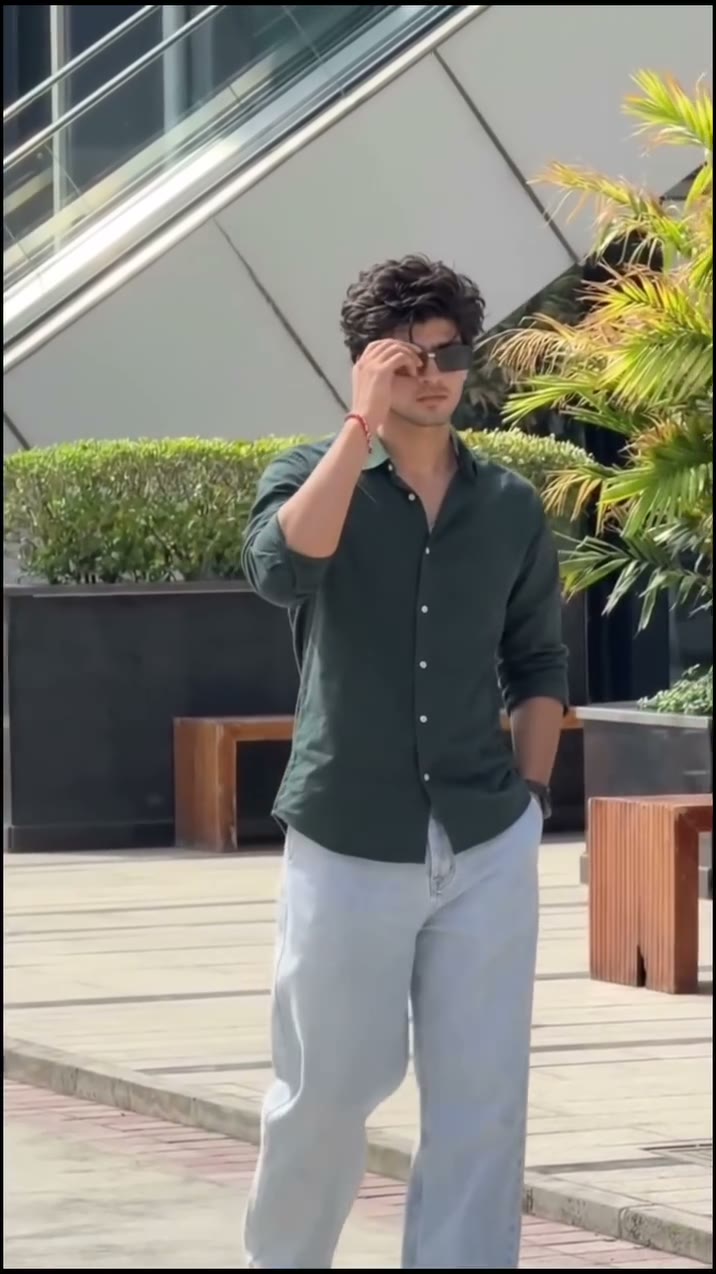
Prepare the shot
Turn one person photo into a street-style cut.
STEP 1
Character
Pick a photo of the subject and look.
STEP 2
Selection
Watch the movement and choose a setting.
STEP 3
Take
Generate the shot, then inspect it for your edit.
Create a shot for your project
Turn one person photo into a street-style cut.
Choose where the shot fits
The change of angle gives an edit a compact style beat. The sequence is generated as one clip; arranging it with other footage is a separate editing step.
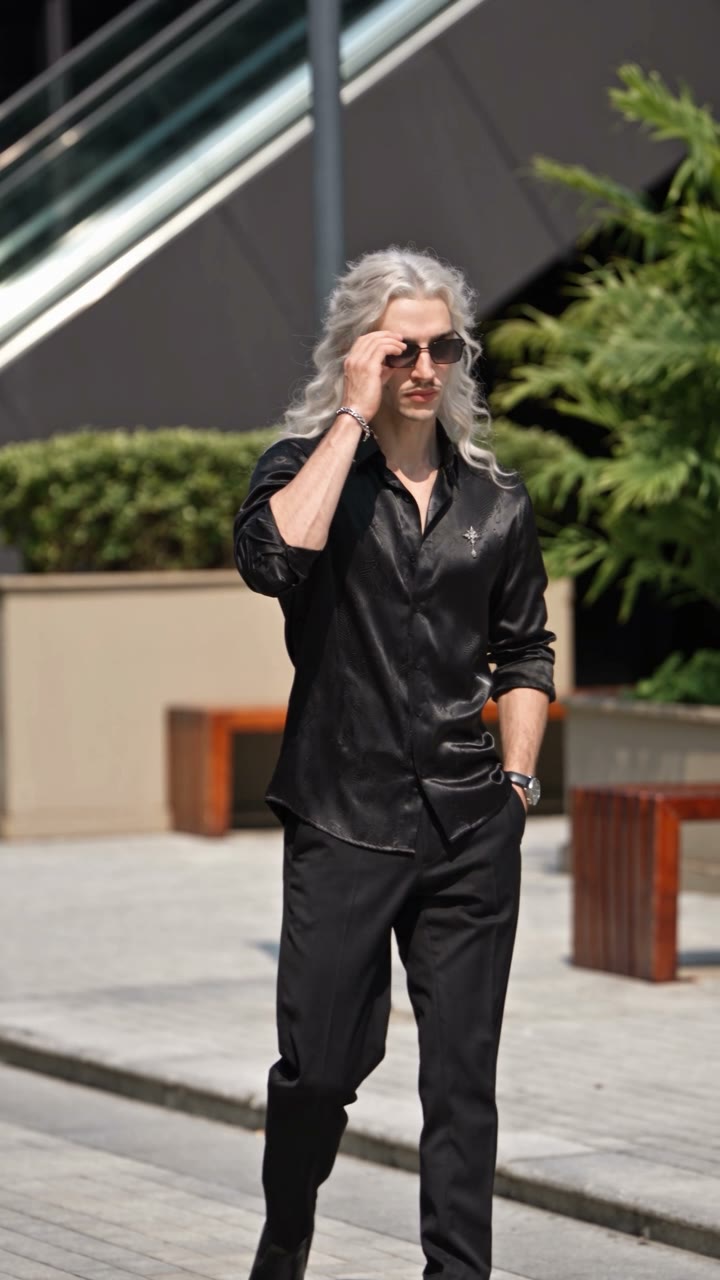
Give the model a readable look
Select a single-person image showing the face and the outfit you intend to feature. A close crop hides information needed for the full-body walk, while the output may still reinterpret small clothing details.
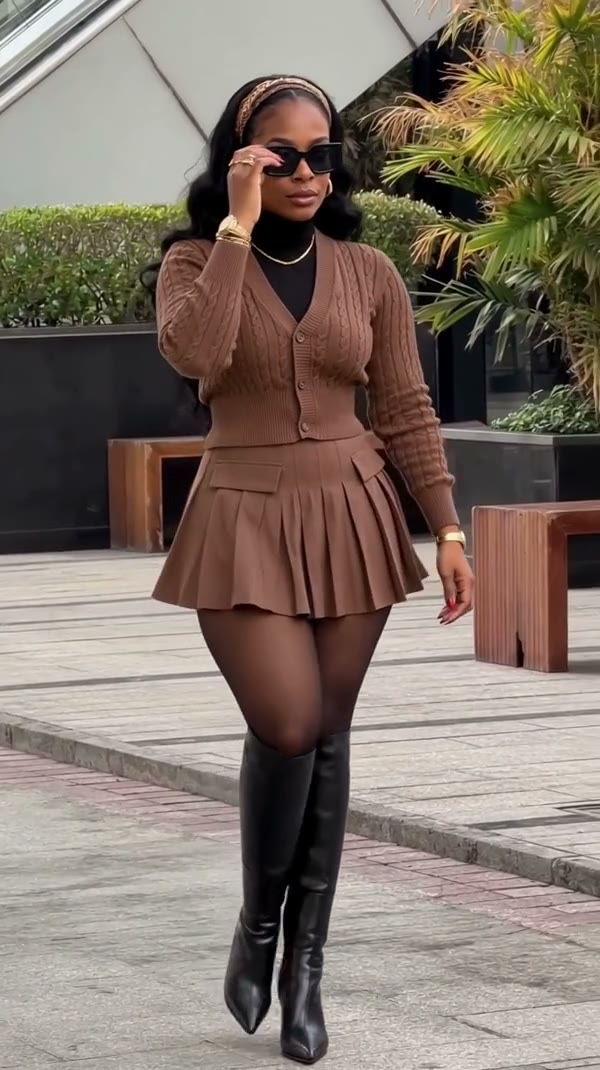
Review the clip before editing
The available source lasts roughly 11 seconds. Select a mode, check the on-screen estimate and examine the face, hands and clothes as the subject turns. The source location stays fixed.
AI Outfit Check Video FAQ
Plan around the footage and its limits.
Can I upload a product photo instead?
The required image is of one person, not a separate garment.
Does the tool edit multiple clips?
This page generates one fixed-scene video.
Can I change the poses?
The walking and poses come from the supplied reference.
What about audio?
The workflow attempts to restore the source audio; check the finished video.