
Explore AI Video Trends
Find a scene, preview its motion and create a version with your photos.
Motion studio
Creations from this workspace appear here.
Find the right scene for your idea
Explore AI video trends by action, cast and setting before choosing a template.
Search by name or explore a category
Look for a familiar trend or browse dances, pets and performances. Watch the full preview to understand what happens, how the scene is framed and how it ends.

Prepare a photo for each role
Load a scene to see its required and optional inputs. A close-up may suit a reaction, while a dance usually benefits from a clear full-body image.
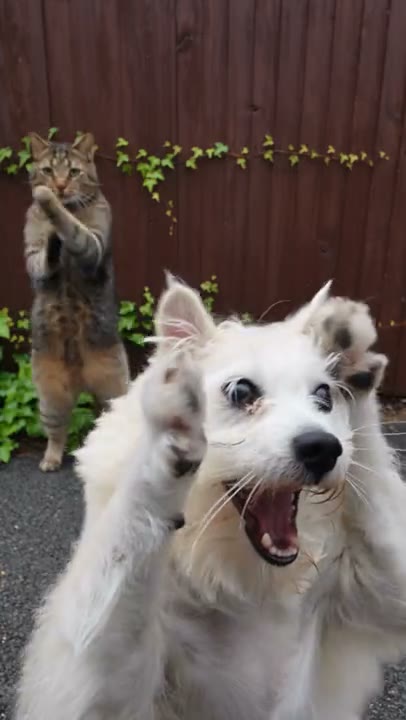
Review the finished movement
Check the mode and estimate before creating. When your result is ready, play the whole clip and inspect faces, hands, objects and any audio.
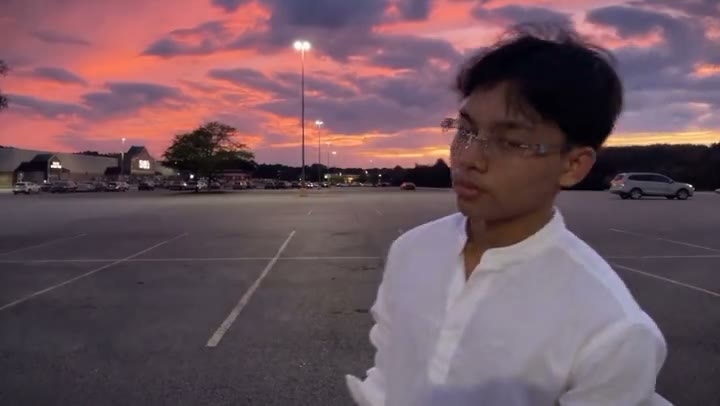
Create with an AI video trend
Choose a scene, add the requested photos and review your settings.
Step 1
Find a trend
Find a scene using search or the category filters.
Step 2
Open its workspace
Preview the movement and select a template.
Step 3
Create your video
Add the photos requested for its roles. Review the settings and generate.
AI video trends: questions and answers
What to know before you create.
What is an AI video trend?
A trend is a prepared scene built around a performance or visual idea. Select one to load its reference and instructions, then supply photos for the available roles.
How do I find a particular trend?
Search for its name or browse the category filters. Preview each scene through to the end to check its movement and cast before loading it.
How many photos will I need?
That depends on the template. The workspace labels the required and optional roles so you can prepare a clear image for each subject.
Which photo crop should I choose?
Match the framing to the action. A close portrait may suit a facial reaction; a full-body shot provides more information for a dance or other wide movement.
Do I have to upload a motion video?
Prepared trends include their own reference. To use a different performance, exit the template and choose a compatible model that accepts your motion clip.
Can I switch to another trend?
Yes. Choose another scene from the collection and review any warning that current inputs will be replaced. Browsing and previewing do not submit a generation.
Does every trend include sound?
Audio depends on the selected template and mode. Listen to your result and check the rights to any soundtrack before sharing it.
How much does a trend video cost?
The form displays the estimated credits for the current template and settings. Sign in and check the estimate and your balance before generating.
Why is my result different from the preview?
The output combines the reference performance with your photos and selected settings. Faces, timing and backgrounds can vary, especially during quick motion or overlapping subjects.
Where can I find my completed videos?
Open My creations or account history to review and download completed results. Check the permissions for the people, images and audio involved before publishing.
Pick your next scene
Return to the collection to preview a trend and load its template.