
Sketch a product scene
Place an object against a clean backdrop or an atmospheric setting. Describe its shape, surface and light; check any labels and edges against the real product before reuse.

Create an image from an idea or explore a new look with a reference.
Describe a subject and setting, then choose an image model. Add a reference if the selected model supports it, review the estimate and inspect the result for details to keep or refine.
Create an image from an idea or explore a new look with a reference.
STEP 1
Select an image model.
STEP 2
Describe the subject and add a reference when supported.
STEP 3
Choose the available output settings and review the estimate. Generate and inspect the result.
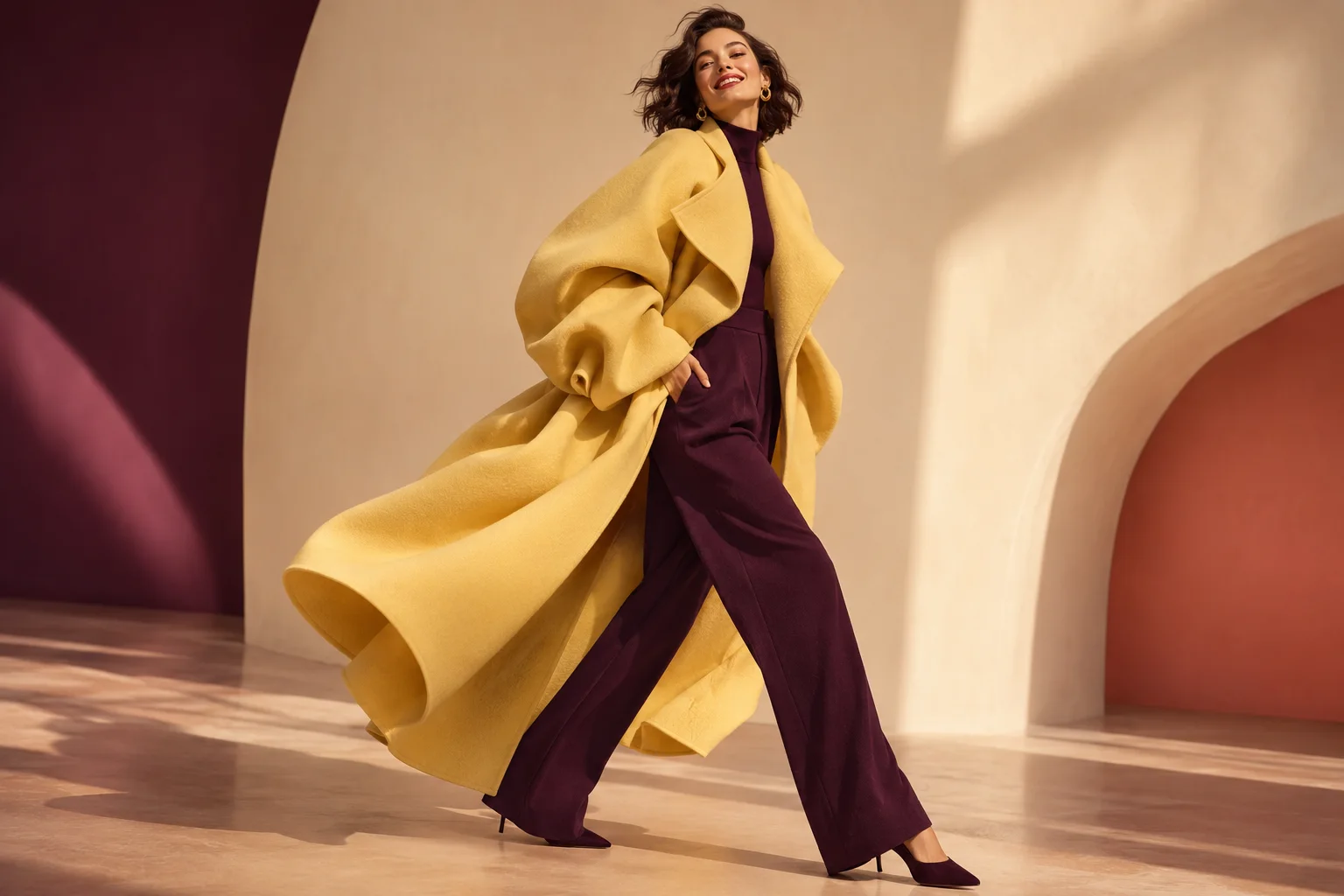
These illustrative images show possible visual directions; they were not generated with Text Match Cut Art.
Place an object against a clean backdrop or an atmospheric setting. Describe its shape, surface and light; check any labels and edges against the real product before reuse.
Describe the appearance, expression and surroundings that define a character. Compare the images, then choose a clear frame if you want to continue in a compatible video workflow.

Change the perspective, weather or light to explore a visual direction. Review spatial details and generated text at full size before using the image.

Use subject placement, colour and framing to explore a cover or campaign concept. Keep the result as a still, or use a suitable image as a reference for video.
Keep the brief, available controls and credit estimate together while you explore an idea.
Describe the subject and setting, or add a supported reference when you already have a visual direction.
Choose the available framing, resolution and image count, then check the estimate before generating.
Review an image in your creations and use it in a compatible video workflow when you are ready.
Subject, framing and references give you useful choices to compare after generation.
State what you want to see and where it appears, then add the view, light or style that matters.
Add a clear image and say which details you want the selected model to change or retain.
Set the available ratio, resolution and image count for your destination. Check the estimate before submitting.
Look closely at faces, hands, text and edges. For a video reference, choose a crop that includes the intended movement.
The workspace shows an estimated credit amount for the selected model and settings before you submit. Review the available plans and your balance when you are ready to create.
For your first ideas.
$218.9 charged yearly
10,080 credits/year
Up to 1,680 images
Up to 560 videos
For a steady creative flow.
$410.9 charged yearly
21,600 credits/year
Up to 3,600 images
Up to 1,200 videos
For more creations, more often.
$593.4 charged yearly
43,800 credits/year
Up to 7,300 images
Up to 2,433 videos
Try before you subscribe
Prices in USD; taxes and total shown at checkout. Subscriptions renew automatically; cancel in Billing settings. Subscription credits expire each period; one-time credits never expire.
Refunds: request within 72 hours. Used purchased credits and applicable non-refundable processing costs (up to 6%) are deducted. Terms · Refund Policy
What to know before you create.
Start with the subject, place and composition. Add the light, materials or style you care about, then make smaller changes after reviewing the first result.
Select a model that supports image references. Upload a picture and describe the change as well as the details you would like to keep. Generated edits can still vary from the original.
Use a portrait, square or landscape option when offered by the model. Think about where the image will appear and leave space for any later title, crop or video movement.
A clear reference can communicate an appearance or composition that is difficult to describe. The model determines how many images are accepted and how they are used; choose material you have permission to use.
Yes, when a compatible video model accepts image input. Choose a still that includes the subject and body parts needed for the intended action, then check any additional inputs in the video form.
Model choice and supported output settings can change the amount. Review the displayed estimate after adjusting image count or resolution and before submitting.
Look closely at faces, hands, text, object edges and details that matter to your project. Confirm you have the necessary permissions for references and any planned use.
Signed-in AI creations appear in My creations and account history. Open the result to review it and use the available download or continuation actions.
Create an image from an idea or explore a new look with a reference.