AI Video Editor for Visual Sequences

Explore a different setting or visual detail in an existing clip before you assemble your sequence.

AI Video Editor

Edit a video

Source video
MP4 or MOV · 4–30 seconds · Up to 50 MB
Reference images · optional
Prompt is required

Create an alternate shot from a source

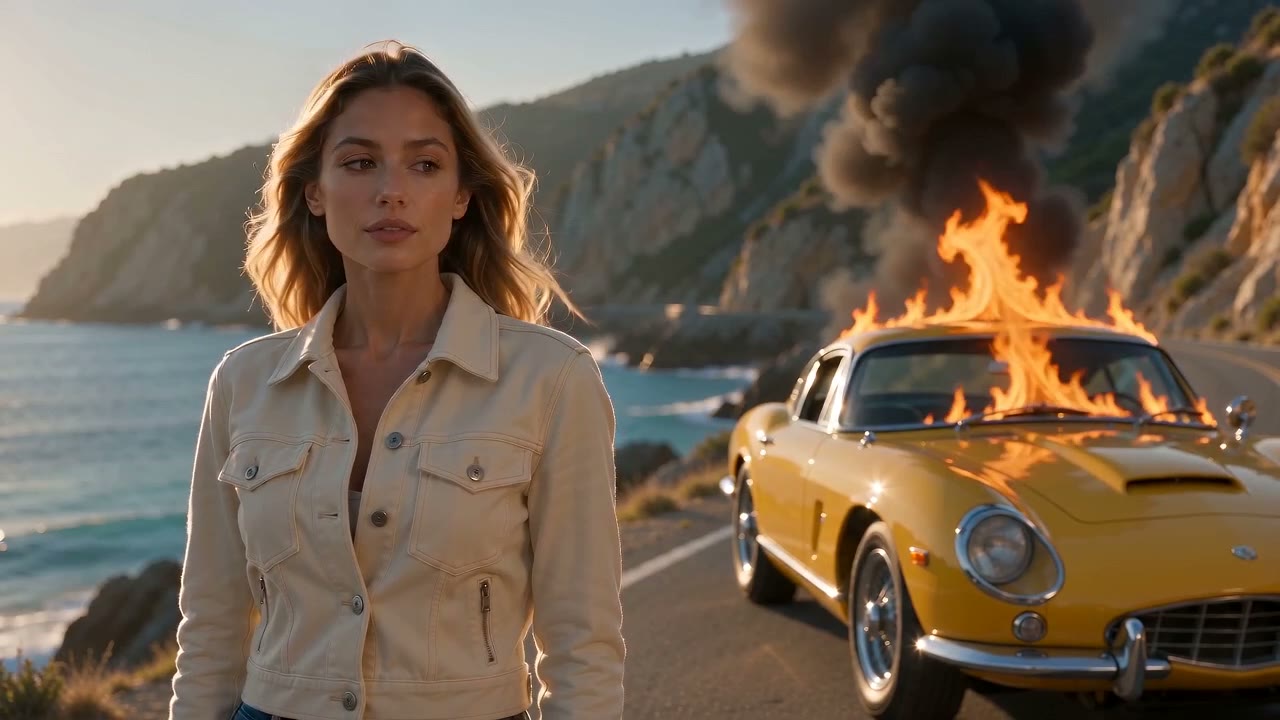
The AI editor combines a moving source with your instructions to produce a generated take. It can explore a new environment or visual element for an edit. The demonstration was made with Seedance 2.0 Mini; the editing workspace uses Seedance 2.5 Edit.

OriginalEdited
Sample created with Seedance 2.0 Mini video reference.

Build an alternate take

Use three focused steps to plan your edit.

  1. STEP 1

    Choose your shot

    Upload one MP4 or MOV between 4 and 30 seconds, with a maximum size of 50 MB.

  2. STEP 2

    Define the variation

    Write a prompt and add reference images if they clarify the visual idea.

  3. STEP 3

    Generate and compare

    Choose resolution, review the estimate and submit after signing in. Inspect the resulting shot in My creations.

Develop visual variations for a sequence

Begin with a source clip and explore an alternate treatment.

Describe a shot that belongs in your sequence

Identify the subject, the intended change and any camera direction you want the model to consider. To create visual continuity, mention lighting, color and composition in your brief, then check what the model actually produced.

OriginalEdited
Reference an object or palette

An optional image can show a desired object, wardrobe item or style. Explain its role in the prompt so the model has context for how the picture relates to the moving footage.

OriginalEdited

Evaluate the edit across frames

Open the completed task in My creations and compare it with the original. Inspect motion, transitions and the shape of important objects throughout the clip before adding it to a sequence.

OriginalEdited

Consider how shots will connect

Use clear visual anchors when planning an edit.

Color

Ask for a palette that complements the footage around your shot.

Setting

Explore an alternate environment for the same starting clip.

Object

Guide an element whose shape or position is important to the sequence.

Questions about generated video edits

Learn how to prepare a shot and review it.

Does this page assemble a timeline?

This workspace generates an edited take from a source video and instruction. Review and assemble your final sequence separately.

What source files work?

Choose one MP4 or MOV from 4 to 30 seconds, no larger than 50 MB.

Must I attach an image?

No. A source video and prompt are required; images provide optional guidance.

Can the output change my camera motion?

Yes. The model is guided by the source but may alter movement, timing or composition.

Find another direction for your shot

Upload your footage and describe the variation.

A coastal car scene gains fire and smoke